
The vendor wants a check by Friday, payroll is waiting on approval, and the payment app you normally use isn't an option this time. That's the point where a lot of small businesses discover that how to print check is less about clicking one button and more about making sure the software, printer, stock, and bank rules all agree with each other.
A clean print run depends on the order of operations. If you set up the check in accounting software first, then ignore paper size, scaling, or MICR placement, you can end up with a page that prints fine and still fails at the bank. The workflow is operational, not cosmetic, and the details that matter most are the ones most guides bury.
Why Printing Checks Still Makes Sense in 2026
A freelance designer has a subcontractor who only accepts a physical check. A small contractor has payroll due and one employee won't take a transfer. A nonprofit treasurer has to issue a payment from a restricted account and needs a paper trail that's easy to reconcile. Those are ordinary situations, and they're exactly why check printing hasn't disappeared.
Modern accounting software treats the process as a controlled queue, not a one-off document. In QuickBooks Online, users record a check, mark it Print later, then print from the queue after entering the starting check number and reviewing a preview before finalizing. QuickBooks also separates Standard checks, which print three checks per page, from Voucher checks, which print one check plus stubs. That formal workflow reflects the long shift from handwritten checks to software-mediated issuance that helps reduce numbering errors and supports batch payments in small-business and payroll settings. See the built-in queue behavior in QuickBooks Online's print-check guidance.
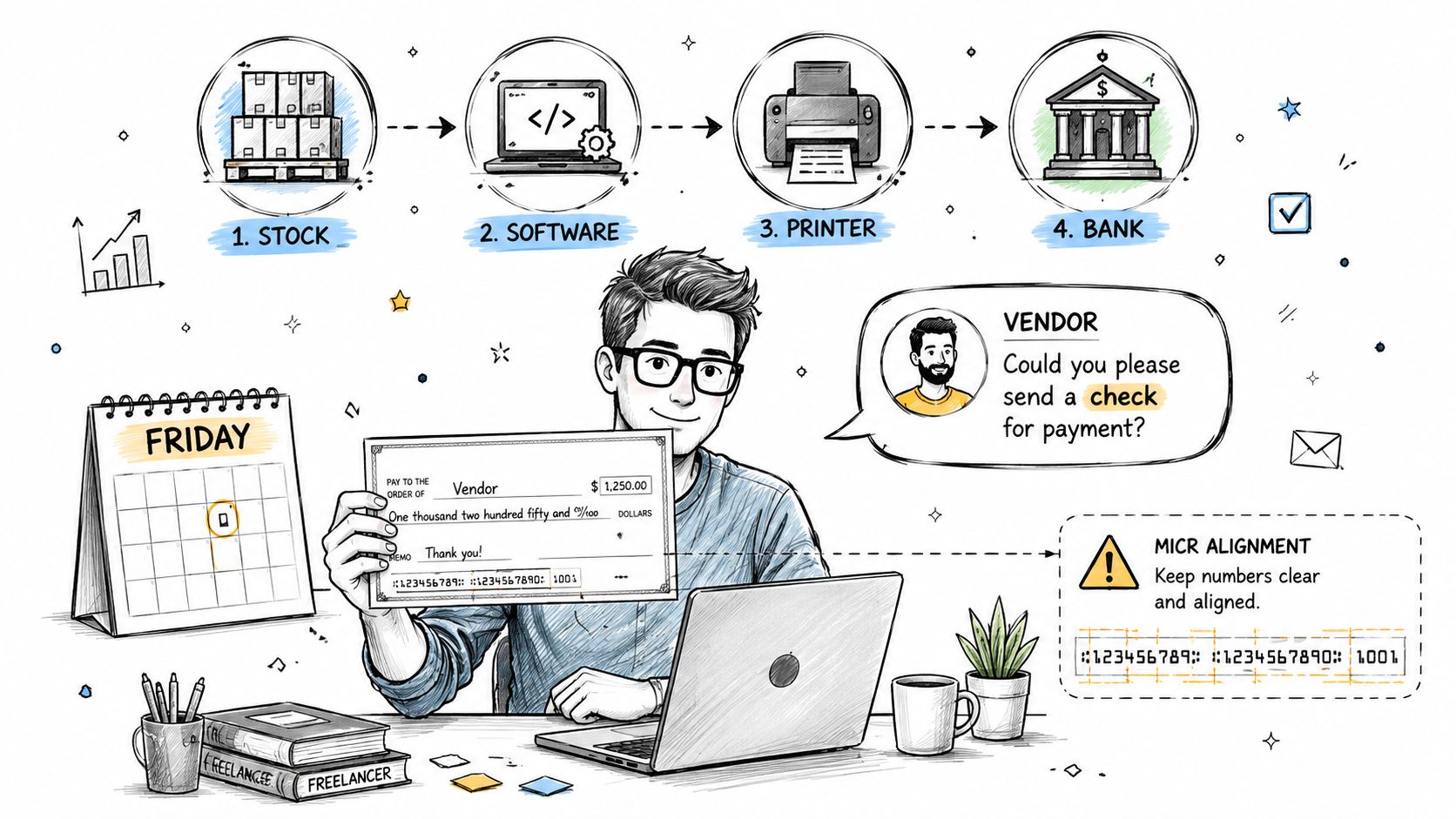
Practical rule: If you can't explain where the check number comes from, where the print queue lives, and what stock the printer expects, you're not ready to print yet.
The useful way to think about this is simple. Stock has to match the format. The software has to match the bank account. The printer has to match the paper size and driver settings. If one of those four is off, the check can come out of the machine looking complete and still be wrong.
The most common failure mode is not the software entry itself. It's scaling or MICR misalignment, which shows up after the setup feels finished. That's why the first successful print run depends less on confidence and more on whether every layer in the process agrees on layout, numbering, and page size.
Decide What You Are Printing Before You Print Anything
Start with the stock, not the software. If you already have blank check stock, confirm whether it's meant for Standard checks or Voucher checks, because the layout determines how the amounts, stubs, and signature area land on the page. QuickBooks Online's split between three-per-page Standard and one-per-page Voucher checks is a good example of why format choice matters before you touch printer settings or enter any bank details.
Pick the format that fits your reconciliation habits
Use Standard checks when you want compact output and you're not relying on long remittance stubs. Use Voucher checks when you want more room for payee details, deduction notes, or payroll support lines. In practice, voucher stock is easier for people who reconcile from paper stubs, while standard stock is often simpler for quick vendor runs.
Then decide whether you need blank stock, pre-printed stock, or a check stock layout that already includes bank information. Blank stock keeps you flexible, but it asks more of the printer and driver setup. Pre-printed checks reduce some layout work, but they also lock you into what's already on the page.
A decent shortcut is to ask three questions before you buy anything new.
- How many checks are you likely to issue at once? If you batch payments, a queue-based workflow makes more sense than printing one at a time.
- Do you want the stub on the same page? If yes, voucher stock is usually the safer choice.
- Does your printer support the output you need? Some setups work fine for plain paper forms but become unreliable when actual check stock enters the picture.
Match the printer to the job
The printer matters because not every device handles check stock cleanly. A laser printer with the right driver settings is usually the safer starting point for home or small-office check printing, especially if you need reliable alignment. If your setup depends on MICR toner, that choice needs to happen before you start testing layouts.
If you're still choosing software or trying to standardize your back office, the BookkeepDIY QuickBooks Online tools page is a reasonable place to compare how check-related workflows fit into a broader bookkeeping stack.
What works in real setups: businesses do better when they choose the stock format first, then tune the software and printer to that decision. Trying to make generic paper behave like check stock usually wastes time.
Configure Your Bookkeeping Software for Check Printing
Software setup is where the check becomes an accounting record instead of just a page. Start by entering the bank account details exactly as they should print, then map the payee, amount, date, and check number fields to the right places in the form. If your system offers an offset or alignment screen, leave it in place and expect to use it after the first test print.
Use the queue, not manual re-entry
In QuickBooks Online, the normal pattern is to record the check, mark it Print later, then send it to the print queue so the number changes to To print. That queue matters because it turns printing into a controlled step rather than a duplicate manual entry. It also helps preserve numbering discipline when you're issuing more than one payment.
Accounting platforms also treat check printing as a formal back-office function, not an ad hoc task. NetSuite, for example, sends users to Transactions > Management > Print Checks and Forms > Checks, which tells you the print screen is part of the system's control flow, not an optional convenience. The same pattern shows up elsewhere in the way systems separate print queues, registers, and reprint controls for reconciliation. See the official NetSuite print-check path in Oracle's help documentation.
Use the software settings with the bank in mind.
- Bank account details: Make sure the routing and account data attached to the check matches the account you're paying from.
- Check number flow: Start with the correct beginning number so the queue doesn't drift.
- Payee mapping: Confirm the payee name lands on the intended line, not in memo space or a stub field.
- Alignment controls: Keep offsets available, because even a good printer can land a few millimeters off on different stock.
The point is not to over-tune the template on day one. The point is to get the software to produce a predictable output that you can then verify against paper and printer behavior.
Set Up Your Printer and Stock for Reliable Output
Most first-time setups break here, even after the software looks perfect. The practical workflow is to configure the printer driver, disable any browser or PDF handling that interferes with scaling, and force the file to open in a viewer that respects the page size you chose. A lot of support documentation hammers on Actual Size and None for scaling because the wrong setting can move the printed fields out of bank-acceptable position.
Test on plain paper before you touch real stock
Print a blank test page first. Hold it behind a known-good check or template and check where the payee line, amount box, signature line, and MICR area land. If the output is off, adjust the offsets in the software or printer driver, then print again on plain paper. That loop saves stock and exposes whether the problem sits in the form, the driver, or the page setup.
One guide on check printing makes the key warning plain, set the scale to 100% or Actual Size, and do not use Fit to Printable Area or Fit to Page because that can shift fields outside the acceptable positions. That warning is worth treating as a hard rule, not a preference. The same guidance also supports the basic sequence of configure, test, then print on actual stock. See the setup and scaling guidance in this check-printing workflow guide.
Make the driver and paper size agree
Printer drivers often default to a paper size that looks close enough but isn't right for checks. Set a custom paper size if your stock requires it, and make sure the application and the printer driver both use the same dimensions. If a PDF keeps opening in the browser instead of a dedicated reader, the browser may apply its own scaling rules and undo your alignment work.
Before a real batch, run through this sequence:
- Load the plain-paper test file. Confirm the printer is pulling from the right tray.
- Print at actual size. Never let the software auto-fit the page.
- Compare against the stock layout. Check the line breaks and bottom MICR area.
- Load actual check stock. Print one check before doing the full run.
Field note: A check can be “printed” successfully and still be unusable if the printer quietly rescales the page. That's why the driver settings matter as much as the form itself.
Meet Bank and Security Requirements So Your Checks Clear
Banks care about whether the printed check can be read and processed, not whether it looks polished. The essentials are the MICR line, the signature panel, and the stock's ability to survive normal handling without obvious tampering. If those pieces are off, the check is at risk long before anyone notices the logo or layout.
Separate hard requirements from best practices
The MICR line is the critical part. It has to sit in the right place and contain the account details the bank expects, including the routing and account information and the check number. If the line is poorly aligned or unreadable, the check can fail machine processing.
The signature is also a control point. It needs room on the page, and the signer needs to use a pen that leaves a clean, legible mark. If the signature line is clipped by the printer or crowded by another field, you've created a problem that software can't fix after the fact.
Security features on the stock itself are the softer layer. They don't replace proper MICR placement, but they do help reduce fraud risk. Keep unused check stock locked up, track voided checks, and don't leave stacks of signed blank checks lying around where anyone can reach them.
For a plain-language refresher on why those controls matter in bookkeeping, the BookkeepDIY internal control glossary entry is a useful reference.
Think like the person reviewing the check
A bank reviewer isn't evaluating your process notes. They're checking whether the form is readable, complete, and consistent with the account. That means the print must land where the stock expects it to land, the MICR line must be in the right zone, and the signature area must be usable without overlapping other data.
The safest habit is to treat voided checks as sensitive documents. Mark them clearly, store them with the unused stock, and don't recycle them into loose paper piles. If you keep that discipline, you reduce the chance of someone mistaking a misprinted form for a valid payment.
Compare Print-at-Home, Pre-Printed, and Third-Party Services
There are really three paths. You can print checks in-house on blank stock, order pre-printed checks from a provider, or hand the job off to a service that prints and mails for you. Each option changes your timing, control, and exposure to layout errors.
Choose based on control, not habit
In-house printing gives you the most control over timing. You can issue a payment when the books say it's ready instead of waiting on a reorder cycle. That works well if you already have the printer setup, the stock, and the patience to maintain alignment.
Pre-printed checks make sense when your volume is low and you want less layout work on the back end. You give up some flexibility, but you also reduce the number of variables involved every time you pay someone. That can be the smarter call for businesses that only cut checks occasionally.
Third-party mailing services fit a different need. If your team wants to approve payments without touching the printer, that model can reduce manual handling and keep the paper out of your office. A service like Melio's payment workflow is one example of the kind of back-office option businesses evaluate when they want to move away from printing in-house.
A simple rule of thumb is this. If you have a dedicated MICR-capable printer, stable stock, and a repeatable workflow, in-house printing can be efficient. If you don't want to manage paper, offsets, and driver settings, a pre-printed or outsourced path may be the more practical choice.
Troubleshoot the Most Common Check Printing Failures
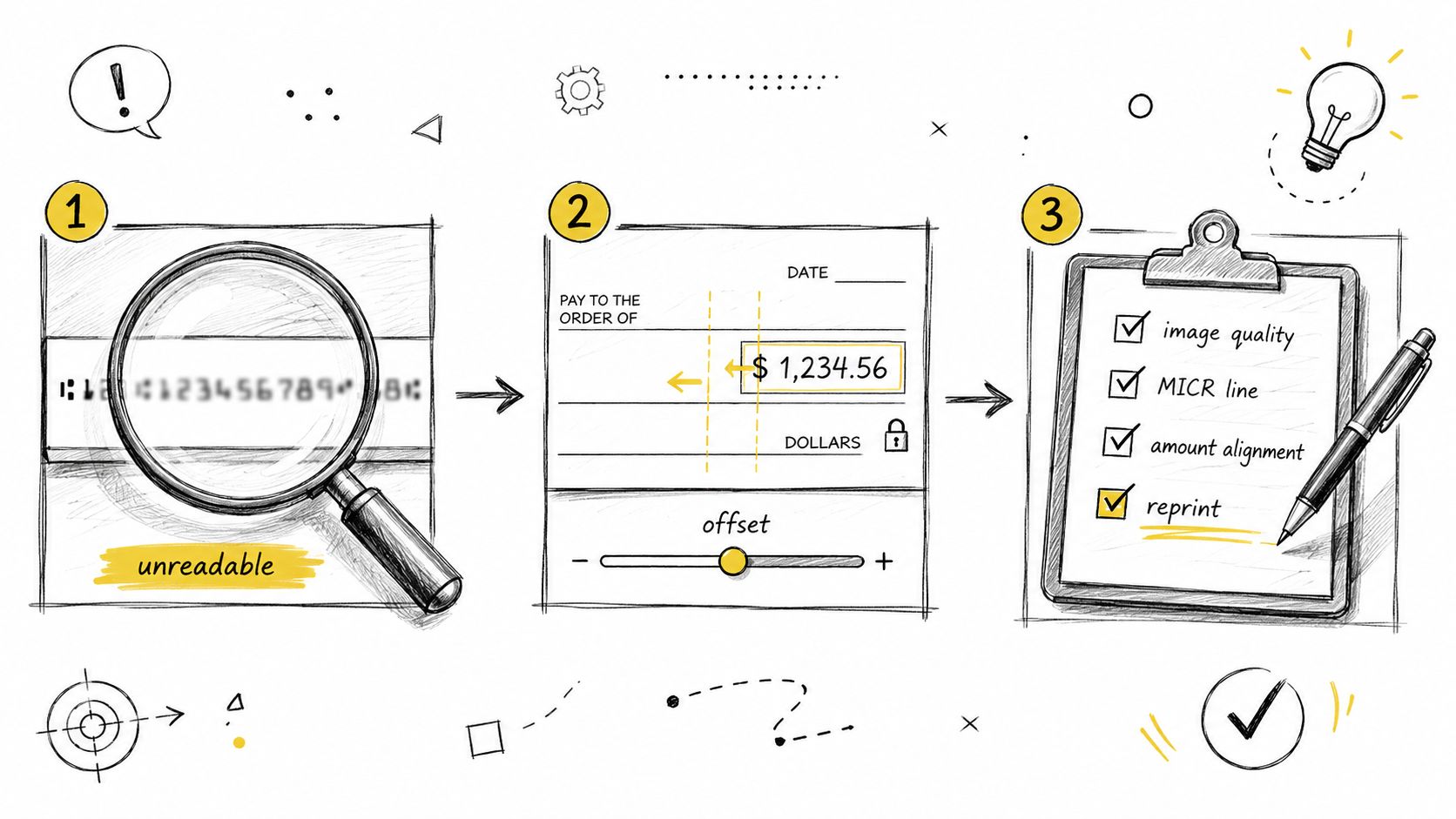
Most failed check runs share the same pattern. The software was fine, but the physical output wasn't. If the MICR line looks blurry, the number sequence is off, or the payee field sits too high or too low on the page, the problem is usually a printer setting, stock mismatch, or template offset issue.
Diagnose by symptom
If the MICR line isn't machine-readable, check the toner, the print quality setting, and the vertical placement of the bottom line. If the check number skips or comes out off by one, inspect the print queue and the starting number, then confirm nothing was reprinted manually. If the amount or payee lands in the wrong place, the driver is probably scaling or the form offset needs a correction.
If the signature line is missing or clipped, the wrong paper size or page scaling is usually the cause. If you're reusing a voided form or handling an unusable check, stop and mark it clearly instead of trying to salvage it. If the setup worked last month but fails now, software or driver version drift is a real possibility, so check for changes in either layer.
“Fix the driver before you blame the form.”
The fastest recovery routine is always the same. Reprint on plain paper, verify the scale, confirm the custom paper size, and compare the output to a known-good template before loading check stock again. That keeps you from burning through a batch while chasing the wrong problem.
BookkeepDIY helps freelancers and small businesses compare bookkeeping tools and understand the operational details behind tasks like check printing. If you're sorting out bank controls, software setup, or the difference between a workflow that works and one that keeps failing, visit BookkeepDIY and use it as a practical reference while you set up your own process.