


If you work out of a truck or van, receipts don’t stay neat. They get stuffed in cupholders, jammed in the glove box, and reappear when you’re trying to invoice a job or close out your books.
You don’t need an office to stay organized. You need a simple system built for field work: rain, dust, fuel stops, supply runs, and eating lunch in the driver’s seat.
Below are practical, low-effort receipt habits that hold up on the road—and a few ways tools like ReceiptsAI can help if you’d rather offload some of the sorting and tracking.
Why receipt organization matters (beyond “tax time”)
Receipts aren’t just paperwork. They protect your money and your time.
- You claim more deductions: tools, materials, fuel, PPE, parking, tolls, phone mounts.
- You bill correctly when materials or job purchases should be reimbursed.
- You back up expenses with dates, vendors, and job notes if questions come up.
- You know what jobs really cost, including the “quick run” that ate an hour.
Field example: A plumber grabs $187 in parts for a specific job. Lose the receipt and you either eat the cost or under-bill the customer. Either way, profit takes the hit.
The #1 rule: choose a “capture first, sort later” workflow
Receipt systems fail in the field when they require multiple steps at the counter.
Separate the work into two phases:
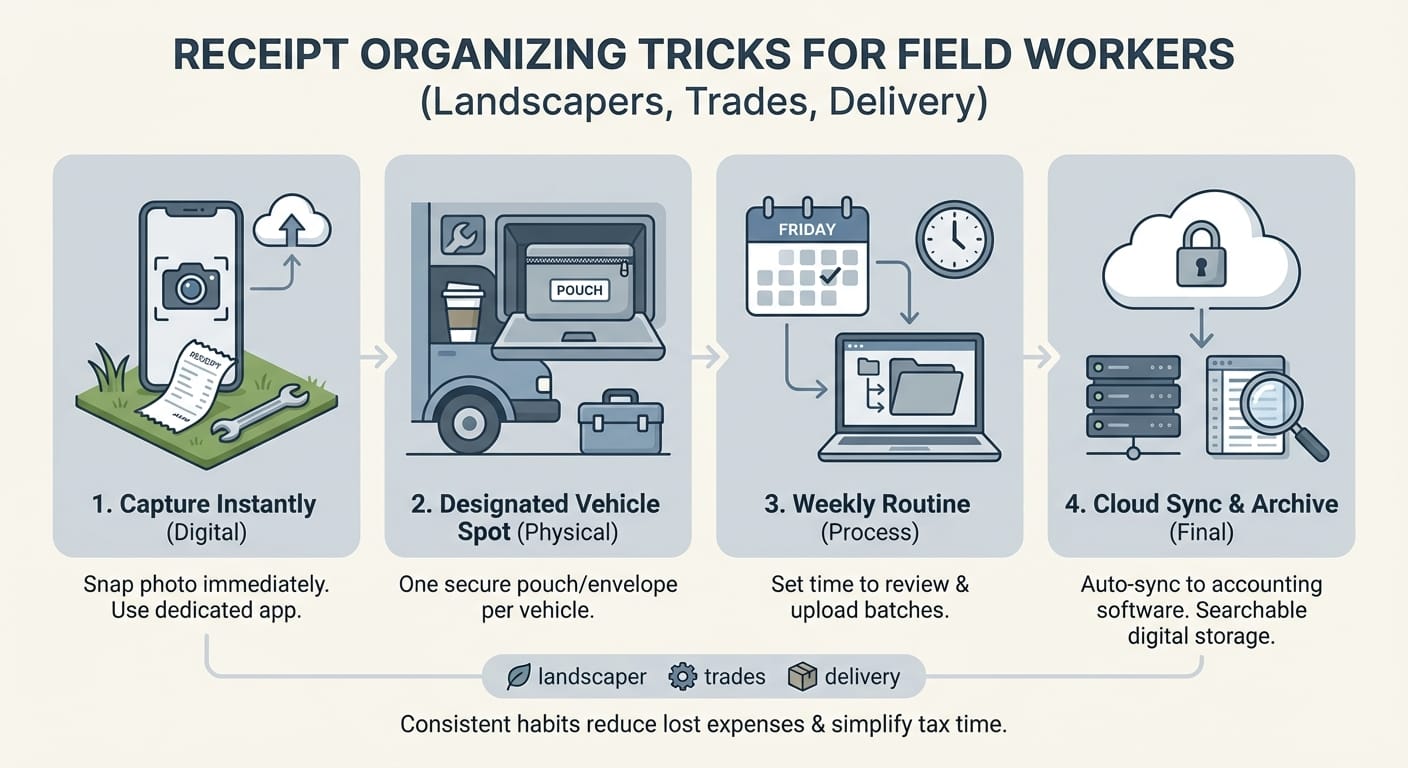
1. Capture: Put the receipt somewhere consistent immediately.
2. Sort: Process later in a batch (daily or weekly).
In the field, aim for one move. Drop it in one pouch. Take one photo. Forward one email. Anything more is hard to stick with.
Set up a truck/van receipt station (cheap and durable)
Your vehicle is your office. Give receipts a home that is not the cupholder.
A simple setup that works
- One rigid envelope or zip pouch labeled “RECEIPTS IN”
- One “processed” pouch labeled “DONE” (optional, but useful)
- A pen + Sharpie clipped on (or tethered so it doesn’t disappear)
- A small clipboard if you write job notes on-site
Where to keep it
- Driver-side door pocket (only if it won’t get crushed)
- Center console (top layer, not the black hole underneath)
- Visor clip (use a strong one)
- Seat-back organizer
Pro tip: Pick a bright pouch so you notice it when it’s time to process.
Use the “3-second annotation” to prevent mystery receipts
A receipt without context becomes a guessing game later. Guessing costs time and money.
Right after the purchase, add a quick note:
- Job name/site (example: “Smith backyard”)
- What it was for (“mulch + edging,” “PVC fittings”)
- Billable or not (“BILL” or “OH” for overhead)
Fast annotation methods
- Write on the receipt with a Sharpie before it goes in the pouch
- Take a photo, then record a quick voice note
- Text yourself: “Home Depot $64.22, Johnson leak repair, BILL”
Landscaper example: “Green Oaks HOA. Fertilizer + gloves. OH.” That’s enough to sort it correctly later.
Go digital with “scan at the moment” (without slowing down)
If you can handle one extra step, digital capture helps prevent paper pileups.
Low-friction digital options
- Take a photo before you start the engine
- Use document scan mode for cleaner images
- Email receipts to yourself (many vendors offer email receipts)
- Forward digital receipts to a dedicated bookkeeping email folder
If you prefer not to manually rename, sort, or retype details later, tools like [ReceiptsAI](https://receiptsai.com/) are designed to turn receipt images into organized expense records you can review and export.
Make it faster with phone shortcuts
- Add a home-screen shortcut called “Scan Receipt”
- Use an automation so receipt photos save to a “Receipts” album
- Create a contact named “Receipts” (your email) for one-tap sending
Trades example: An electrician buys wire nuts and a tester. Photo the receipt, then add “Miller panel upgrade” in the note field when you log the expense.
Separate business and personal spending (even if you’re solo)
Mixing personal and business purchases turns bookkeeping into cleanup work.
Field-friendly separation strategies
- Use a dedicated business card (best option)
- Run all operating spend through one business checking account
- Use a separate fuel card if fuel is a big line item
- If you must mix purchases: mark the business items immediately
Delivery example: You buy gas and snacks on one receipt. Circle the fuel, then write “personal snacks $7.84” so you don’t expense it later.
Use job-based buckets (for anyone who bills per project)
If you bill for materials or track job profitability, sort receipts by job. Vendor-based sorting is slower and often less useful.
Easy job-sorting methods
- Accordion file with one pocket per active job
- Gallon zip bag per job tossed in a tool bin
- Digital folders like “2026-03 Johnson. Patio” with receipt images inside
If you’re scanning receipts, you can also tag them by job as you capture them (or during your weekly review). Some receipt tools—including ReceiptsAI—are built around searchable, taggable receipt records, which can make job lookups faster later.
What to write on the job folder/bag
- Job name + address (or a short code)
- Start date
- Customer phone/email
- “Billable materials: yes/no”
Concrete example: A contractor runs three jobs at once. Each receipt goes into the right job bag. When it’s time to invoice, pull the bag, total the billable items, and attach receipt copies if requested.
Build a weekly “receipt reset” (15 minutes that saves hours)
A short weekly routine beats a quarterly scramble.
A realistic weekly reset
Pick a time you can stick to:
- Friday afternoon before you head home
- Sunday evening
- Monday morning before the week starts
Then:
- Empty the “RECEIPTS IN” pouch
- Toss duplicates and junk (flyers, random slips)
- Group by job or category
- Enter expenses or upload to your bookkeeping system
- Move paper into “DONE” or a monthly envelope
If you scan during the week, this reset can be mostly “review and confirm,” especially if your tool extracts vendor/date/amount for you (the kind of workflow ReceiptsAI focuses on).
Your weekly checklist (copy/paste)
- [ ] Fuel receipts captured
- [ ] Supply house receipts matched to jobs
- [ ] Tool purchases categorized (asset vs expense)
- [ ] Meals marked (business purpose noted)
- [ ] Parking/tolls logged
- [ ] Digital receipts saved/forwarded
Time saver: Set a recurring calendar reminder: “Receipt Reset (15 min).”
Don’t forget the receipts you never receive (parking, tolls, apps)
A lot of field expenses don’t come with a clean paper receipt. You still need a record.
Common “missing receipt” categories
- Meter parking (screenshots work)
- Toll transponders or pay-by-plate charges
- App-based purchases (platform fees, route tools)
- Online orders picked up in-store
- Small cash tips (where applicable)
- Jobsite disposal fees (sometimes just a handwritten ticket)
Capture tactics
- Screenshot the confirmation screen and save it to your Receipts album
- Export monthly statements (tolls, platforms) and file them with your receipts
- Keep a small notebook for cash items with date and purpose
Delivery example: Screenshot the parking app confirmation, then rename it “2026-03-05 Downtown parking $6.50.”
Store paper receipts the right way (because they fade)
Most receipts are printed on thermal paper. Heat and sunlight can fade them quickly, which makes your dashboard a bad storage spot.
Better storage rules
- Do not leave receipts on the dash or in direct sun
- Store them in a cool, dark pouch
- For anything you may need later, scan it
- File monthly envelopes in a small bin at home or the shop
A simple structure:
- Envelope labeled “2026-03 Receipts”
- Drop processed receipts in as backup
- At year-end, move envelopes to a labeled banker’s box
Quick category cheat sheet for field workers
Consistent categories make reports cleaner and tax prep faster.
Common categories:
- Fuel & vehicle (gas, oil, maintenance, car wash)
- Materials & supplies (job consumables)
- Tools & equipment (bigger items may be assets)
- PPE & safety (gloves, masks, boots)
- Subcontractors/labor
- Cell phone & data
- Meals (business) (note who and why)
- Parking, tolls, permits
- Software & subscriptions
Tip: If you’re unsure, pick a category and add a note. Clean and consistent beats perfect.
Conclusion: a simple system you can start this week
A good receipt system works when you’re busy and tired. Make field capture simple, then clean it up once a week.
Next steps (do these in order)
1. Set up a receipt station in your vehicle (one pouch labeled “RECEIPTS IN” plus a pen).
2. Use the 3-second annotation (job, purpose, BILL/OH).
3. Pick one capture method: paper pouch *or* photo scan. Don’t juggle five methods.
4. Schedule a 15-minute weekly receipt reset and treat it like a real appointment.
5. Add job-based sorting if you bill materials or want job costing (folders, zip bags, or digital folders).
If you’re already scanning receipts and want less manual entry, it may be worth testing a purpose-built option like ReceiptsAI alongside your current bookkeeping workflow to see if it reduces review time.