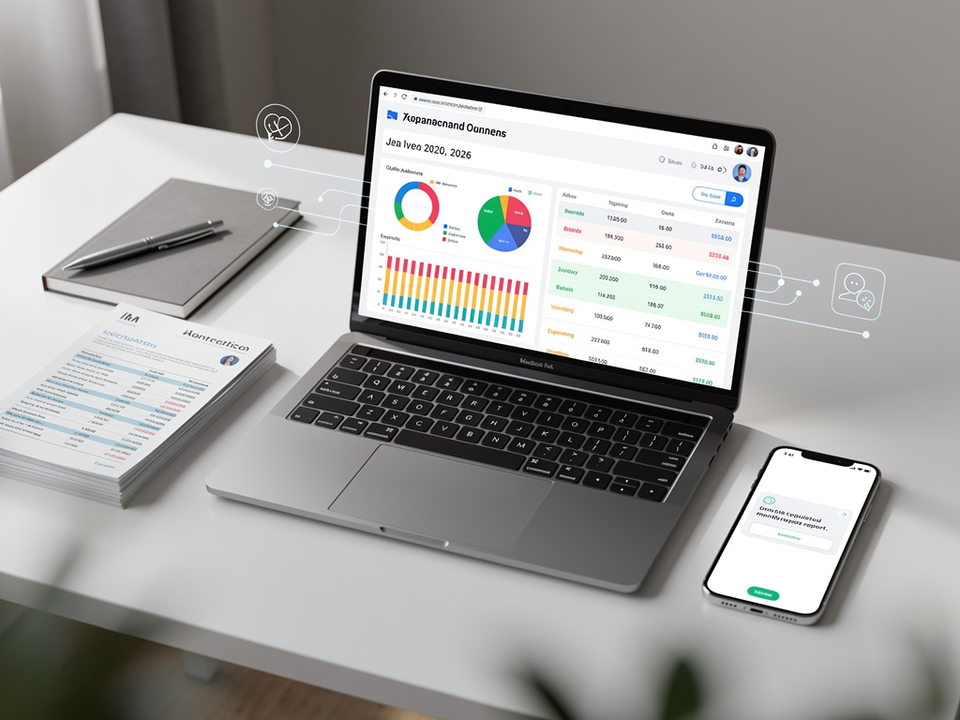

Manually compiling expense reports every month is one of those tasks that feels like it should have been solved years ago. Yet many teams still spend hours sorting receipts, copying data into spreadsheets, and chasing down approvals. In 2026, the tools to eliminate that work are widely available and straightforward to implement.
This guide walks through the practical steps to automate your monthly expense report process, from receipt capture to final submission, using workflows that work for most small and mid-sized businesses today.
Key Takeaways
- Automation can reduce expense report creation time from hours to minutes
- Effective setups combine receipt scanning, accounting software, and approval workflows
- AI-powered categorization has matured enough to handle most expenses without manual review
- Most small and mid-sized businesses can configure this without a dedicated IT team
- The right tool depends on your company size, accounting stack, and approval complexity
Why Expense Report Automation Matters More Than Ever
Finance teams in 2026 are expected to do more with fewer resources. Manual expense reporting creates several concrete problems:
- Time waste: Employees spend an average of 20 minutes per expense report, and finance staff spend considerably longer reviewing them
- Errors: Manual data entry produces duplicate entries, miscategorized expenses, and missed reimbursements
- Delayed closes: Late or incomplete reports push back monthly financial closes
- Poor visibility: Leadership cannot track spending trends in real time when data lives in spreadsheets
Addressing these four problems is largely what expense automation is designed to do.
Step 1: Choose the Right Expense Management Platform
The foundation of any automated expense setup is the software you use. In 2026, leading platforms offer end-to-end automation as a standard feature rather than an add-on.
What to Look For
- Receipt OCR and AI categorization: The platform should read receipts automatically and assign the correct expense category without requiring manual input
- Credit card and bank feed integration: Direct connections to corporate cards remove the need for manual transaction entry
- Accounting software sync: Look for native integrations with QuickBooks, Xero, NetSuite, or whichever system you already use
- Approval workflow builder: You should be able to configure multi-level approvals without writing code
- Mobile app quality: Employees are more likely to submit receipts promptly if the process takes under 30 seconds on their phone
Platform Comparison
| Platform | Best For | Accounting Integrations | AI Categorization | Starting Price (2026) |
|---|---|---|---|---|
| Expensify | Small to mid-size teams | QuickBooks, Xero, NetSuite | Yes | ~$5/user/month |
| [Ramp](https://ramp.com/enterprise/) | Fast-growing companies | NetSuite, Sage, QuickBooks | Yes | Free tier available |
| Brex | Startups and tech companies | NetSuite, Xero, QuickBooks | Yes | Free tier available |
| SAP Concur | Enterprise | SAP, Oracle, most ERPs | Yes | Custom pricing |
| Zoho Expense | Budget-conscious teams | Zoho Books, QuickBooks | Yes | ~$4/user/month |
For teams that primarily need to digitize and organize receipts before they reach an expense platform, a dedicated receipt processing tool like Receipts AI can handle the extraction and parsing step, feeding clean data into whichever system you use downstream.
Choose the platform that fits your current accounting stack. Switching accounting software to match an expense tool is rarely worth the disruption.
Step 2: Set Up Receipt Capture Automation
Collecting and organizing receipts has traditionally been the most time-consuming part of expense reporting. The goal here is to reduce that friction as much as possible.
Options for Receipt Capture
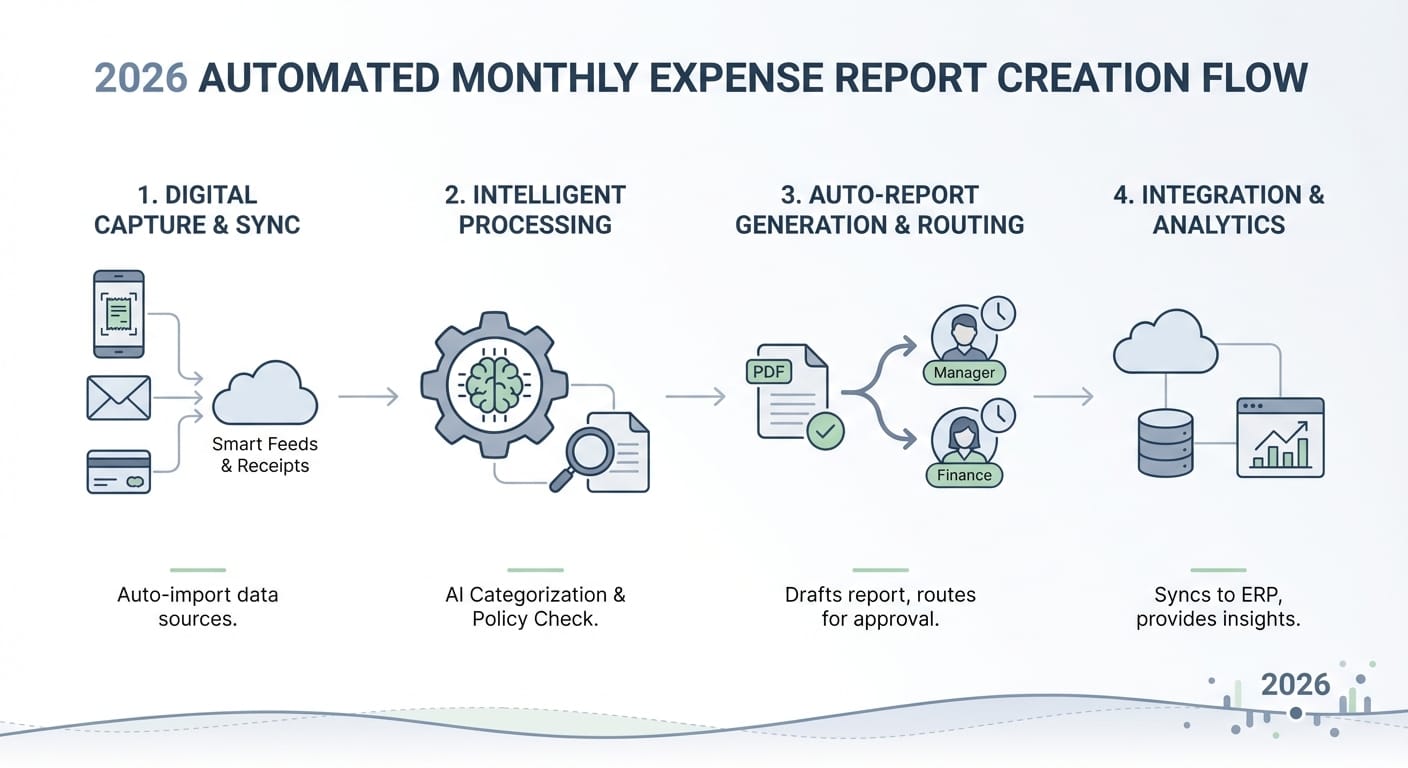
- Email forwarding: Employees forward digital receipts to a dedicated address, and the platform parses them automatically
- Mobile photo capture: Employees photograph a receipt immediately after a purchase, and OCR extracts the vendor, date, and amount
- Corporate card auto-import: When a card transaction posts, the platform creates a draft expense entry and waits for a receipt to be matched
- Bank and card feed sync: Transactions from connected accounts appear in the platform automatically, often before the employee considers reporting them
When employees submit receipts in real time rather than in a monthly batch, the month-end report largely assembles itself. Tools like Receipts AI are built specifically for the extraction step, which can be useful if your team deals with a high volume of receipts in varied formats before they enter your main workflow.
Step 3: Configure Automated Categorization Rules
Most modern expense platforms use AI to categorize transactions, but you still need to configure rules that reflect your chart of accounts and internal policies.
How to Do This
1. Map your categories: List every expense category in your accounting system and define which types of purchases belong to each
2. Create merchant rules: Specify that purchases from certain vendors always map to a particular category, for example, all Uber charges go to Travel
3. Set policy flags: Configure automatic flags for expenses that exceed limits, fall on weekends, or are submitted without receipts
4. Review AI suggestions for the first 60 days: Correcting miscategorizations during this period helps the system learn your preferences
After the initial setup period, most platforms reach 90 percent or higher categorization accuracy without ongoing manual input.
Step 4: Build Your Approval Workflow
Automated categorization reduces manual work but does not eliminate the need for human oversight. A well-configured approval workflow handles that oversight without requiring constant attention.
Approval Workflow Best Practices
- Route by amount: Expenses under a defined threshold can be auto-approved; larger amounts route to a manager
- Route by category: Travel and entertainment expenses may require a different approver than office supplies
- Set escalation timers: If an approver does not act within 48 hours, the request escalates automatically or triggers a reminder
- Enable mobile approvals: Managers should be able to approve or reject with a single tap from their phone
Most platforms include a visual workflow editor for this. No developer involvement is required.
Step 5: Automate the Monthly Report Generation
Once receipts are captured, categorized, and approved throughout the month, generating the actual report becomes a near-instant task rather than a manual project.
How to Set This Up
- Schedule auto-generation: Configure the platform to compile and send a monthly expense report on a fixed date, such as the last business day of each month
- Define report templates: Specify which fields, categories, and summaries appear so the output matches what your finance team needs
- Connect to your accounting software: Set up automatic export or sync so approved expenses post directly to the correct accounts without manual journal entries
- Archive automatically: Reports should save to a designated folder in your document storage system without manual intervention
When this is configured correctly, your finance team receives a complete, categorized, and approved expense report at the start of each month without handling a single receipt directly.
Step 6: Monitor, Audit, and Improve
Automation requires a lightweight monitoring process to stay reliable over time. A brief monthly review is usually sufficient.
What to Review Monthly
- Categorization accuracy rate: Are AI-assigned categories still correct, or have new vendors introduced errors?
- Policy violation flags: Are the same employees repeatedly triggering the same types of flags?
- Approval bottlenecks: Are reports stalling while waiting for a specific approver?
- Duplicate detection: Is the system catching duplicate submissions consistently?
A 15-minute monthly review is generally enough to keep the process running cleanly.
Conclusion
Automating monthly expense reports in 2026 follows a logical sequence. Start with a platform that fits your existing accounting stack, set up frictionless receipt capture, configure categorization rules that reflect your policies, build an approval workflow that handles routing automatically, and schedule report generation on a fixed cycle.
For teams where receipt volume or format variety creates friction early in the process, a focused tool like Receipts AI addresses that specific step without requiring a full platform change.
Your Next Steps
1. Audit your current expense process and identify where the most time is being lost
2. Choose a platform that integrates with your existing accounting software
3. Run a 30-day pilot with one team before rolling out company-wide
4. Set a measurable target: aim to reduce monthly expense report preparation time by at least 80 percent within 90 days
The tools to do this are available and practical. The main requirement is starting.