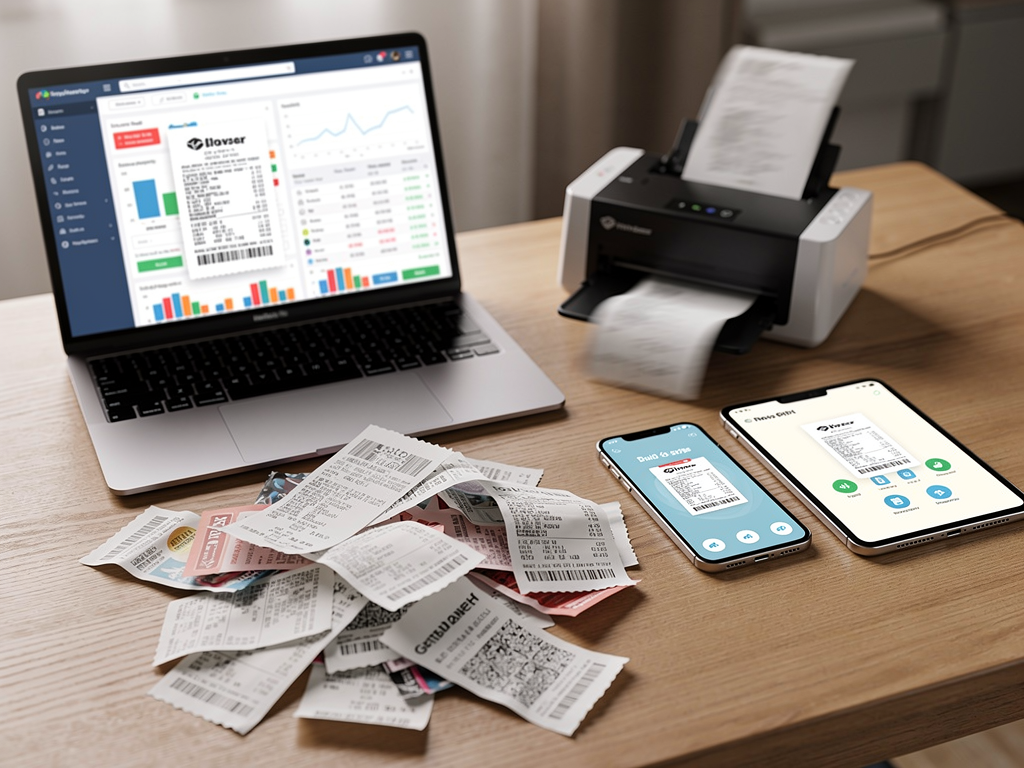

Manual receipt tracking is the kind of “quick admin” task that eats a surprising amount of time. You buy supplies, travel to a client, pay for software, and receipts end up in four places: crumpled paper in your bag, PDFs in email, screenshots on your phone, and a spreadsheet you’ll “update later.” Then month-end hits. You’re staring at bank transactions trying to remember which coffee was a client meeting and which one was just caffeine.
Receipt scanning tools are supposed to stop that. The good ones turn receipts into usable bookkeeping data: vendor, date, total, tax, category, plus a clean attachment tied to the right transaction. The bad ones create a different mess: wrong totals, duplicates, exports your accountant hates, and more cleanup than you started with.
We tested three popular options using the same mix of real-world receipts (fuel, restaurants, retail, taxis, and emailed PDF invoices). We judged them like a freelancer or small business owner would: speed, accuracy, ease of use, accounting integration, and how they hold up when you’re busy.
What “automated receipt scanning” actually replaces (and what it doesn’t)
Before you pick a tool, get clear on what you’re trying to fix. Most receipt automation tools do three things:
1. Capture: take a photo, forward an email, or import a PDF.
2. Extract: OCR reads merchant, date, totals, tax, and sometimes line items.
3. File + match: stores the image and (ideally) matches it to a bank/credit card transaction in your accounting system.
Where you’ll notice the difference right away:
- End-of-month cleanup: Instead of digging for receipts, you review a queue that’s already captured.
- Missed deductions: Small stuff (parking, tools, client lunches) gets saved when it happens, not when you finally remember.
- Audit readiness: Attachments sit with the transaction, so you can back up your numbers.
What these tools usually don’t do perfectly:
- They don’t guarantee correct categorization. Some learn patterns, but you still need review. Meals, travel, and mixed purchases are common problem areas.
- They don’t fix vague card statements. If your bank feed has junky merchant names, matching still takes judgment.
- They won’t enforce policy unless you set rules (like requiring notes for meals or tagging billable expenses).
The realistic target isn’t “no bookkeeping.” It’s cutting receipt admin from hours to minutes by capturing consistently and reviewing in batches.
One more note before we get into the three tools we tested: if your workflow is less about reimbursements and more about getting clean receipt data out of photos (for example, into a spreadsheet), there are also focused “scan → extract → export” options like ReceiptsAI’s receipt scanner, which emphasizes AI OCR extraction and export to Excel.
Tool #1: Expensify SmartScan (best for fast capture and reimbursements)
Expensify is built for expense reports, but plenty of freelancers use it because capture is fast. In our test, SmartScan handled a mix of paper receipts (coffee, office supplies, parking) and returned usable fields, like merchant, date, and total, within a short processing window.
What stood out in daily use
- Fast, low-friction capture: Open the app, snap, done. That matters because the best tool is the one you’ll use in the moment.
- Strong on common receipt formats: Restaurant and retail receipts were usually read correctly, including taxes when clearly printed.
- Useful for client-billable expenses: Tagging and reporting make it easier to pass through expenses to clients.
Where it can create follow-up work
- Tips and unclear totals: Handwritten tips and faint printing still caused errors. Meals are a frequent offender because subtotal/total/tip lines get misread.
- Categorization isn’t accounting-ready out of the box: Category suggestions are fine for basic tracking, but you’ll want to map them to your chart of accounts if you care about clean books (especially with job costing or COGS).
- Integrations depend on what you want it to do: Expensify can export or sync, but “smooth” depends on whether you want it to create transactions, attach to existing ones, or just spit out reports.
Best fit
- Freelancers and small teams who want quick capture plus reimbursement-style tracking, and who can tolerate a quick review step for tips/taxes.
Tool #2: Dext Prepare (best for bookkeeping accuracy and clean accounting exports)
Dext (formerly Receipt Bank) is popular with bookkeepers for a reason. It’s designed to turn receipts and invoices into structured accounting inputs. In our tests, it was especially strong on PDF invoices (software subscriptions, contractor bills, emailed receipts) and produced cleaner vendor/date/total fields than most consumer-focused apps.
What stood out in real workflows
- Reliable document handling: Email an invoice to your Dext address and it pulls the key details without drama.
- Better structure for bookkeeping: The review/publish flow is built for accounting, so it’s quicker to approve lots of items without hunting for fields.
- Rules and supplier memory: Dext learns how you code vendors (for example, “Shell” to Auto/Fuel). Set it up once, and the time savings compound.
Where you’ll want to pay attention
- Setup is not optional if you want the payoff: Plan 30–60 minutes to set categories, tax rates (if relevant), and rules. You can scan without it, but you’ll miss the whole point.
- Not a full expense platform: It’s not trying to be mileage tracking, corporate cards, or reimbursements. It’s a document-to-bookkeeping tool.
- Edge cases still need review: Mixed receipts and partially business purchases still require human decisions.
Best fit
- Owners who want bookkeeping-grade output, work with a bookkeeper/accountant, or deal with higher volume. If your issue is “my books are messy,” Dext is built to clean that up.
Tool #3: QuickBooks Online Receipt Capture (best if you want one system, not another app)
If you already use QuickBooks Online (QBO), the built-in receipt capture is tempting because it keeps everything in one place. In our test, it worked best when treated as a receipt inbox: capture receipts as they come in, then match them to bank feed transactions during weekly bookkeeping.
What worked well
- No extra system to reconcile: Receipts live inside QBO, attached to the transaction you care about.
- Works with a weekly routine:
- Capture photos during the week (or email receipts in).
- Once a week, match receipts to downloaded bank/credit card transactions.
- Categorize and publish in the same session.
- OCR is fine for basics: Clean receipts usually produced accurate vendor and total fields. PDFs imported reasonably well.
Where it fell short compared to dedicated tools
- Less reliable on messy receipts: Faded ink, odd layouts, and tip lines needed more manual fixes than specialized tools.
- Less automation on extraction: QBO has bank rules and memorized payees, but the receipt parsing itself isn’t as strong as a tool built purely for document processing.
- Matching depends on your bank feed quality: Multiple similar charges (like several parking transactions) still mean manual matching.
Best fit
- Solo owners already running QBO who want the simplest stack: capture → match → categorize, all in one system. If you hate adding another subscription, this is the cleanest path.
How to choose the right tool (and make it actually save you time)
The best receipt scanning tool is the one you’ll use every time. The right choice depends more on your workflow than the feature checklist.
Choose Expensify if you need:
- Fast mobile capture for day-to-day spending
- Reimbursement-style reports (even if you’re just tracking what the business owes you)
- Simple tagging/summaries for client expenses
Choose Dext if you need:
- Better accuracy on invoices and repeat vendors
- Cleaner accounting exports and faster review
- Rules that improve over time (and you’ll invest the setup time)
Choose QuickBooks receipt capture if you need:
- One system for bookkeeping and attachments
- A simple weekly matching process
- Fewer subscriptions and fewer tools to maintain
If you don’t need a full expense-reporting system and you mostly want to turn receipt photos into structured fields you can review and export (for example, to Excel), a dedicated scanner like ReceiptsAI can also fit that “capture → extract → export” lane.
No matter what you pick, you only get results if you run a basic operating system:
- Make a capture rule: do it within 2 minutes. Wait until Friday and receipts vanish, physically or mentally.
- Do a 20-minute weekly review. Daily perfection is a trap. Weekly consistency works.
- Standardize meals and travel notes. For meals, add “Client: Acme kickoff” (or whatever actually happened). For travel, make sure date and location are clear.
- Decide how you handle Amazon and big-box stores. Mixed purchases happen. Plan for occasional splits, like “Office Supplies” and “COGS.”
- Keep one source of truth. If QBO is your accounting system, don’t let a receipt tool create duplicates. Either attach-and-match, or use a controlled publish process. Pick one method and stick to it.
This isn’t about scanning receipts. It’s about having a repeatable pipeline where expenses get captured, categorized, and backed up without a monthly scramble.
Conclusion: turn receipts into a system, not a monthly scavenger hunt
Receipt tracking shouldn’t be a recurring fire drill. With the right tool and a basic routine, it becomes boring in the best way: capture as you go, review weekly, and keep attachments tied to real transactions.
From our testing, the paths are clear. Expensify is best for quick capture and expense-report workflows. Dext is strongest for bookkeeping-quality data and rules that save time over months. QuickBooks Online receipt capture is the simplest option if you want everything inside QBO.
Pick one, use it consistently, and put a weekly review block on your calendar. Less receipt hunting. More time running the business.